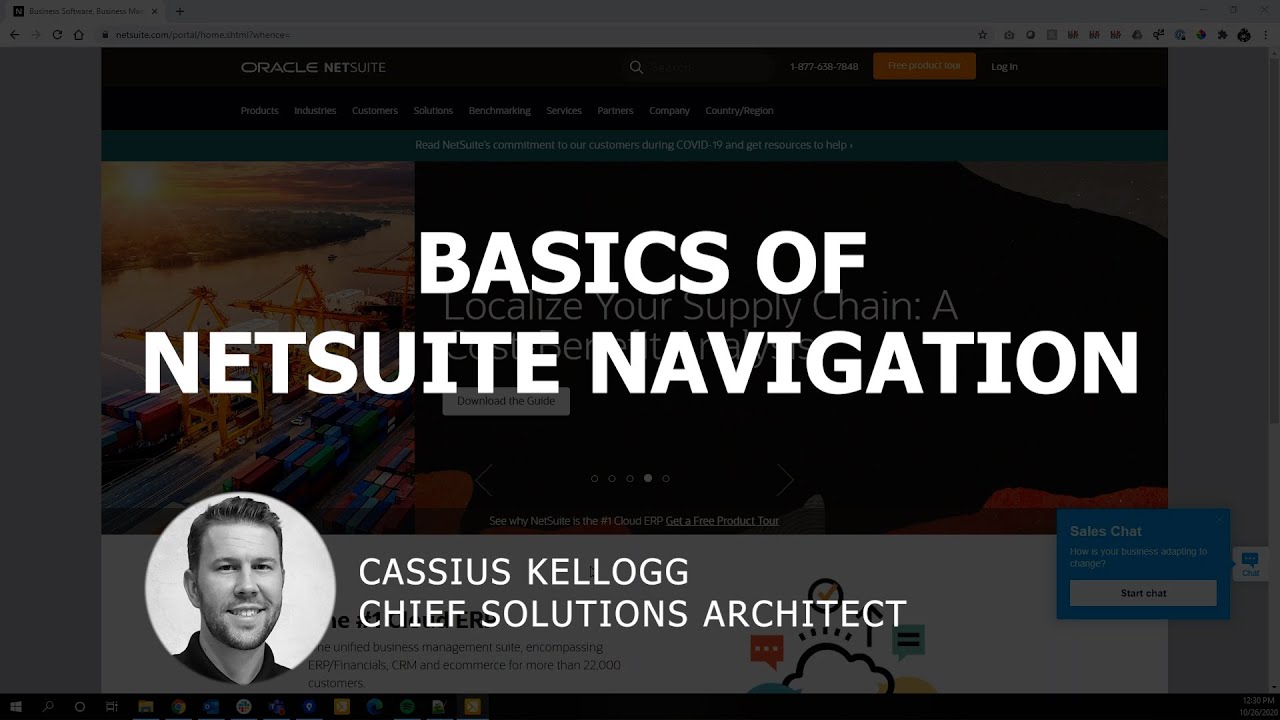
NetSuite Navigation 101
First day in NetSuite? Recent records, shortcuts, the New bar, and context-aware help, the parts of the screen every role shares.
About this episode
Whatever role you log into, the top bar stays the same, and that persistent strip is the whole curriculum here.
Cassius Kellogg works across it left to right: the Recent Records menu tracking every page you visit, the star menu that mirrors your dashboard's shortcuts portlet (he saves an item list view plus a new-item shortcut that opens in its own tab), and the New bar, personalized by drag and drop so a quote sits one click away. The back half covers getting unstuck: the Help icon opens documentation matched to the record on screen, and SuiteAnswers adds searchable support articles and videos, shown with a bank feeds lookup. Switching between assigned roles and logging out close it.
Talk to a NetSuite consultant
Questions about what you just watched? A 30-minute call with our team gets you straight answers on your own setup.
Book a call00:05hello this is cassius kellogg and today we're going to be overviewing the basics of netsuite navigation first off how to get to netsuite and how to successfully log in so first step in any browser i prefer google chrome but in any browser go to netsuite.com and in the upper right hand corner you will see a login option from there you'll be able to enter your username which is traditionally your email address and your password go ahead and click on the login option once you've logged in you're going to see somewhat of a familiar screen when it comes to just the basics of netsuite no matter what user role you're using in today's example i'm just going to be using the administrator role but any user roles will have some similarities across the board and that is just consistent with all netsuite environments going from left to right the first consistency that you'll see is something called recent records
01:10this is going to show you any pages inside of netsuite that you have visited recently so for example i have a customer record listed here and a few other records that i've navigated to recently just to show you an example of how this can work if we go to our item master and i simply click view on a sample item one by viewing that item record if i return to my home screen or click on really any other page hover over my recent records again you'll notice that that sample item one is now at the top of my recent records that's my most recently visited page inside of netsuite so if you're unsure of how to get back to a screen you were just on best chances for you to find that are most likely going to be under this recent records navigation next up is our star icon and this is a shortcut menu so the shortcuts you'll
02:10actually notice here in my set of results those mirror the shortcut portlet over here on the right hand side of my screen shortcuts won't necessarily always be on the right-hand side right hand side it may not be in the center it may not be on the left it may be completely hidden in which case you may need to personalize your dashboard and locate that shortcuts portlet usually on the far right hand side listed here you can see that it's kind of grayed out because it's already present on my dashboard if i remove that you'll notice that it becomes available to re-add and i can re-add that back to my dashboard so your star icon menu always will mirror whatever your shortcut dashboard menu displays a couple ways that you can add new information to your shortcuts if we return to our item master let's
03:07actually go to our list view here and i want to view those items on a recurring basis and something i click on on a regular frequency i can just add this list view to my shortcuts by hovering over the star and adding the shortcuts i like to best practice add the word list to the end of the shortcut anytime i'm going to a list result so i'm going to actually just put this as items list go ahead and save while we're here i'm going to actually add another shortcut to be able to create a new item so i'm going to do the same thing hover over my star icon click add to shortcuts and you'll notice that netsuite knows that we're on the new item page only difference here is i'm going to open this in a new window and click save show you the difference of those two options if i click on my home screen i don't have to go back home could have gone anywhere else could have clicked on customization tab no matter where i am you will always have what i call your tab navigation bar up top
04:14that's always going to be consistent throughout the system and that also dictates that we'll always have our shortcuts with our star icon and our recent records with our clock icon hovering over our star icon you'll see i have my items list and then i have my new item when i click on my items list just a simple left click that's going to take me to my item list that i saved as a shortcut earlier i'm from the same screen i could write sorry left click same type of click action on my new item but remember i clicked that check box to open in a new window at least inside of chrome what that actually does is opens in a new tab so it doesn't actually create a brand new window it just creates a new tab which i personally prefer anyway so that's a nice little feature where if you want to always have that open a new tab not take you from your current browsing screen you can set that preference by default
05:14and then you can choose your new item that you want to create and flowing over to the right hand side i want to talk a little bit about what i call the new bar so the new bar here allows you to create new records inside of netsuite for example if i want to create a new sales order i can click on this sales order option and i am taken to a sales order entry screen this new bar is present in all roles however the results that you see on the new bar are going to differ from roll to roll if you don't see what you're looking for you may need to personalize your new bar this may or may not be an option depending on the role that you're in the permissions you've been given by your administrator but for now i'm going to click on personalize and just show you that we have a bunch of different results that we can add to our new bar one that may be common is a quote if i'm someone
06:14that's in sales and i want to create new quotes for my customers that may be something i want easily accessible on my new bar you can see that just by clicking and holding down my click i can drag and drop the order in which i want my new bar organized so if i find myself creating opportunities then quotes then sales orders more frequently than maybe creating vendors i can reorganize the sequence in which these are displayed now that i've added quote let's go ahead and just click save on the new bar and when we hover over that again you'll now see that i have quote listed so it's just a nice feature that simplifies clicks simplifies the memorization of how to navigate through the tab navigation bar to find the ability to create a quote much easier much more friendly for user adoption shifting a little bit further to the right here
07:18we will always have a help icon what is really nice about netsuite's design is its intuitive nature of knowing what screen we are looking at at the moment when we click on this help icon so when i click on help you'll notice that it takes me to the help center and specifically takes me a page called estimates natively in netsuite quotes are called estimates in this environment i have chosen to rename estimates as quotes so that is one kind of setting that you'll see here inside of the netsuite environment that all of the help documentation is based on the core naming structure of those records but here on estimates some relevant help information what's really nice is netsuite provides you with related topics so maybe preparing an estimate might be more relevant to what
08:08i'm looking to achieve rather than just the general overview of estimates so if you can't find something on the page that it takes you to by default odds are you will be able to find that information at least one click away browsing through the relevant or related articles similar to the help section netsuite has another help repository called suite answers you can get to suite answers two different ways you can go to the help center and then from the help center you'll be able to click suite answers here another way that you can get to suite answers is if i'm just back in general ui view i can hover over my support tab which is present in all roles and click on go to suite answers both will take you to the same screen from here you'll be able to type in the topic or the question that you may have and find relevant articles that go along with that topic i can see here bank feed suite app is somewhat relatively new feature and i want to learn more about that so i can type in bank feeds and
09:16that's going to take me to a set of different results netsuite has a variety of different types of results you'll see the question mark here puzzle pieces as another type you'll notice on the left hand side those are relevant types of articles so support articles are articles that are written based on an answer from netsuite on a previous question asked by a netsuite customer so any of us are able to actually submit questions support tickets to netsuite support and from those questions if there's enough volume and they find themselves answering the same question over and over they're actually going to just put that directly into suite answers and flag those uniquely so odds are if you have a question about something someone else did as
10:00well and that may be able to be located inside of the suite answers repository another useful option is videos anytime you want to read or watch a video overview about a specific feature such as the bank feed suite app you'll be able to watch those videos from within suite answers very helpful i think netsuite oracle has done a really good job of organizing their different content and making it readily available to all users last thing i wanted to touch on is just how to navigate different roles if you are assigned to multiple roles a single user may have multiple roles assigned to their employee record if you're a consultant you may actually have login access to multiple system environments in which case i do so just by simply hovering over your name this is how you can log out remember it is cloud-based system so you will potentially get automatically logged out based on your system settings controlled by your administrator or
11:04you're going to want to log out yourself and then if you had multiple roles you can navigate between those roles just by hovering over your name and clicking on the different role there's a pretty quick high-level overview of basic netsuite navigation some of the key features that are available to you no matter what role you're using whether you're in the all-powerful administrator role or in one of the more detailed granular end user roles you will always have the recent records shortcuts the support tab to go to suite answers the new bar the help option and the ability to toggle or switch between user roles hopefully this video was helpful and i look forward to seeing you on a future recording