SuiteCommerce MyAccount for Merchants
Drop a sale banner into the customer portal, preview it on phone and tablet, and publish it straight to production in real time.
About this episode
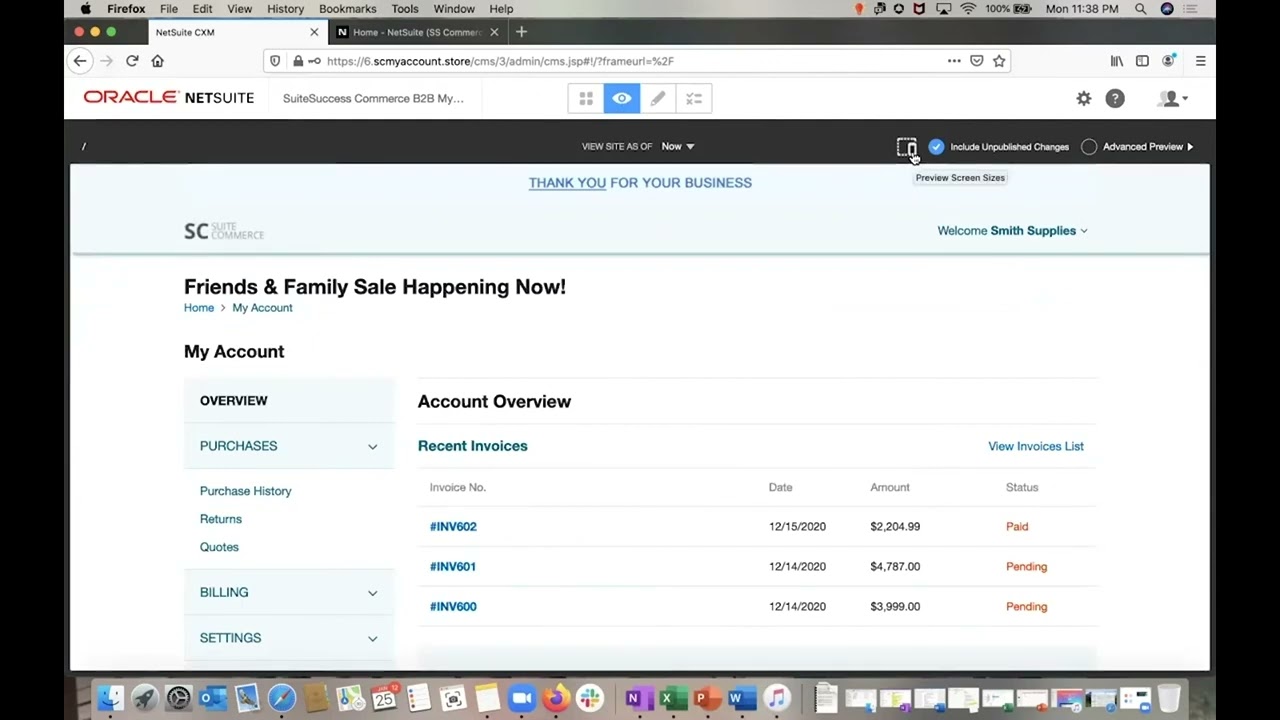
Recorded from an administrator login, the walkthrough centers on one edit: a 'Friends and Family Sale' banner added in edit mode, scheduled for specific dates or set to always show, previewed at desktop, tablet, and phone sizes, then published to production.
Along the way come the extension picker that drops content onto every page at once and a change checklist where each pending edit can be published or discarded on its own. It ends signed out, with the banner already live on the shopper-facing page.
Talk to a NetSuite consultant
Questions about what you just watched? A 30-minute call with our team gets you straight answers on your own setup.
Book a call00:00foreign netsuite's SuiteCommerce my account from the role of a merchant I am currently logged in as an administrator at the top of the screen I will click on the pencil icon to access edit mode next I'll click on the plus icon in the top right corner of the screen to see the different extensions that I've added to my netsuite instance this is where I can drag and drop content including images as well as text to all pages within my account without having to visit each page individually let's go ahead and add a banner for my customers to see while they navigate my account I will title this Banner friends and family sale happening now we have the option to make this content always visible or we can schedule content to be visible on specific dates foreign I can select different header options and make other stylistic changes using the buttons on the screen once I'm done adding and formatting my text
01:26I'll go ahead and click save in the top right corner the eye icon at the top here allows us to preview the changes that we've made so far the size icon at the top right helps us see how our added content will look on different screen sizes such as on a computer on a tablet or on a smartphone the checklist icon here displays all the changes that we've made during this session each change including the friends and family text that we added earlier is displayed as an individual line item along with the visibility preferences that we indicated earlier during the edit phase I can publish or discard changes on an individual basis by clicking on the bubble next to each change and then clicking on publish a pop-up appears as the final step informing me that these changes will be pushed to production netsuite successfully published the changes into production automatically I will
02:46now sign out of my administrator role netsuite automatically takes me to the public view of SuiteCommerce my account where the friends and family Banner has now appeared in real time my customers will now see this Banner after signing into my account thank you